Add Course Enrollments to Member Profiles in KMx
Once you have logged into the administration side, you can add course enrollments to a member's profile.
1. Introduction
This process updates the member's training history.

2. Access People Section
Select People.

3. Open Member Search Options
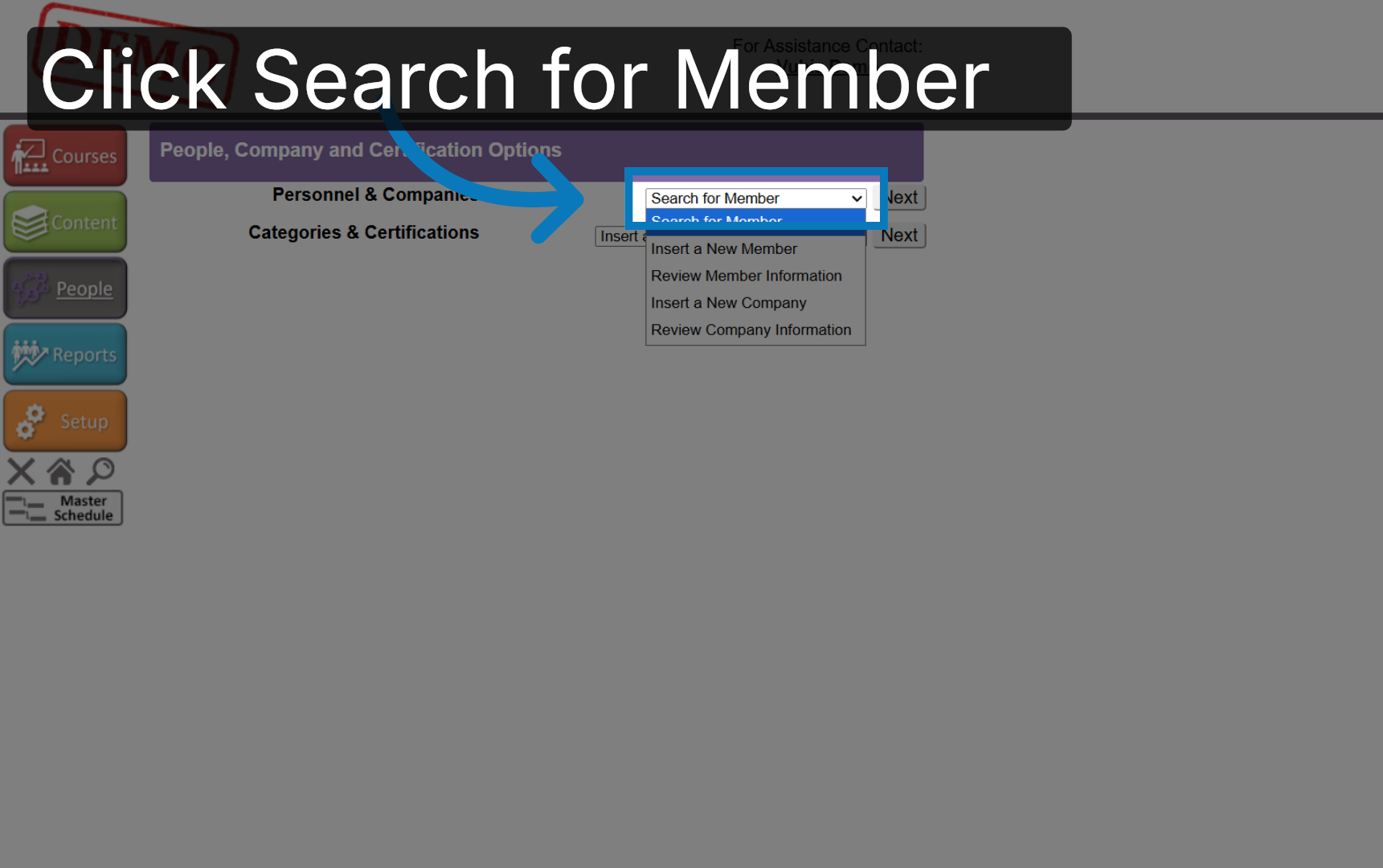
Select Search for Member
4. Proceed to Next Step
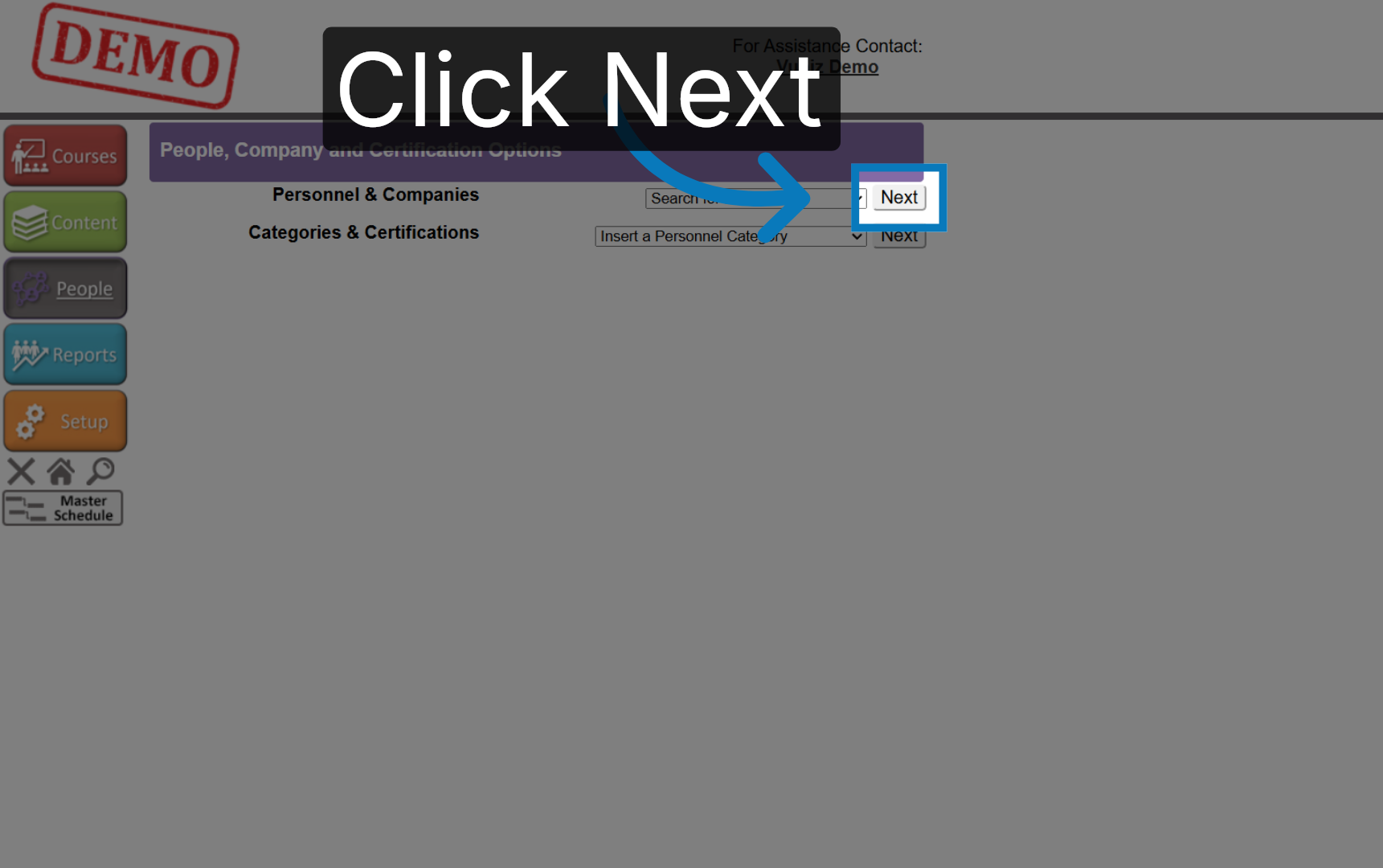
Click Next.
5. Initiate Member Search
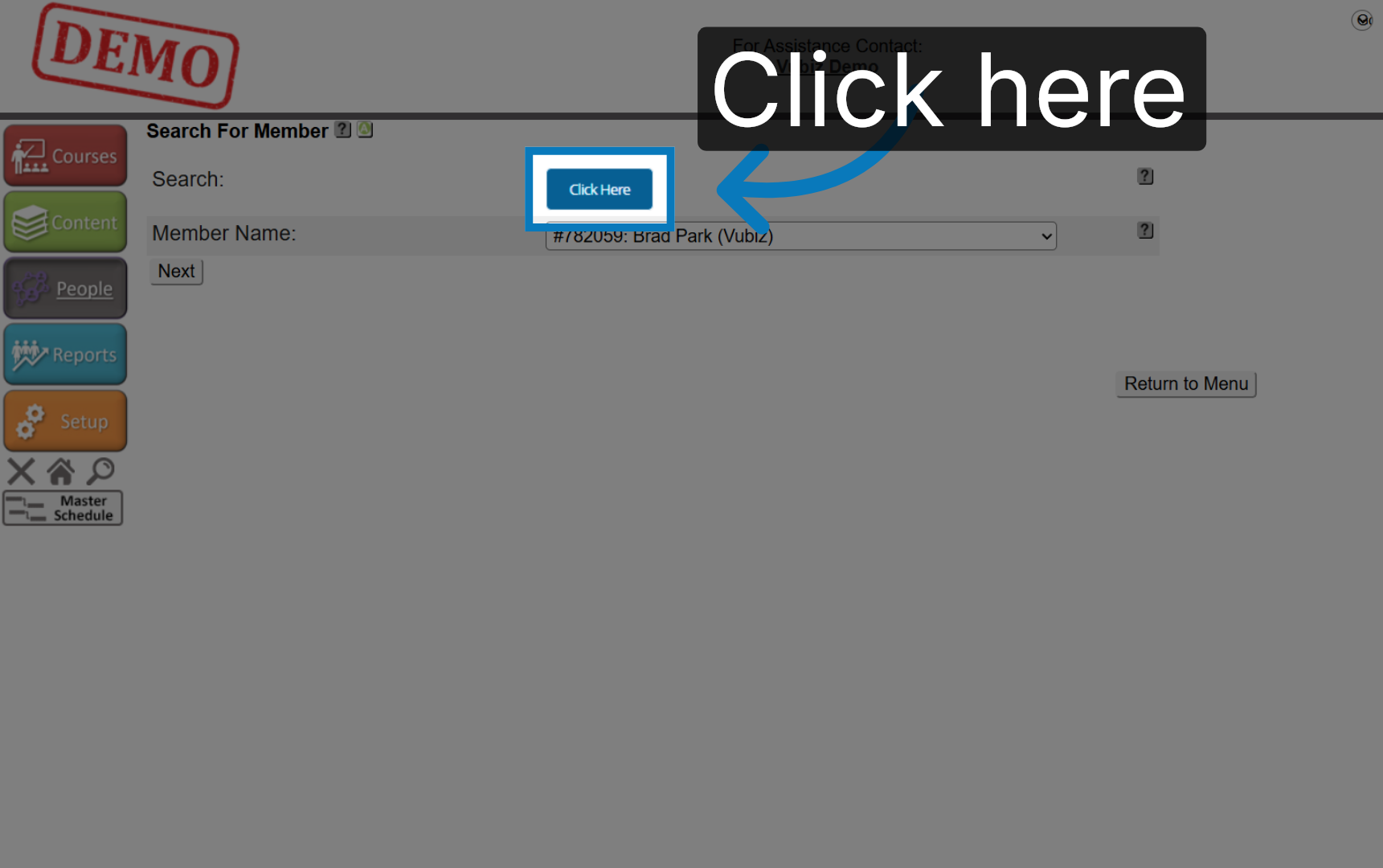
Click the Search button.
6. Open Course Search
Click Search.... and enter either a first or last name

7. Submit Member Search
Click Submit.

8. Choose Member Profile
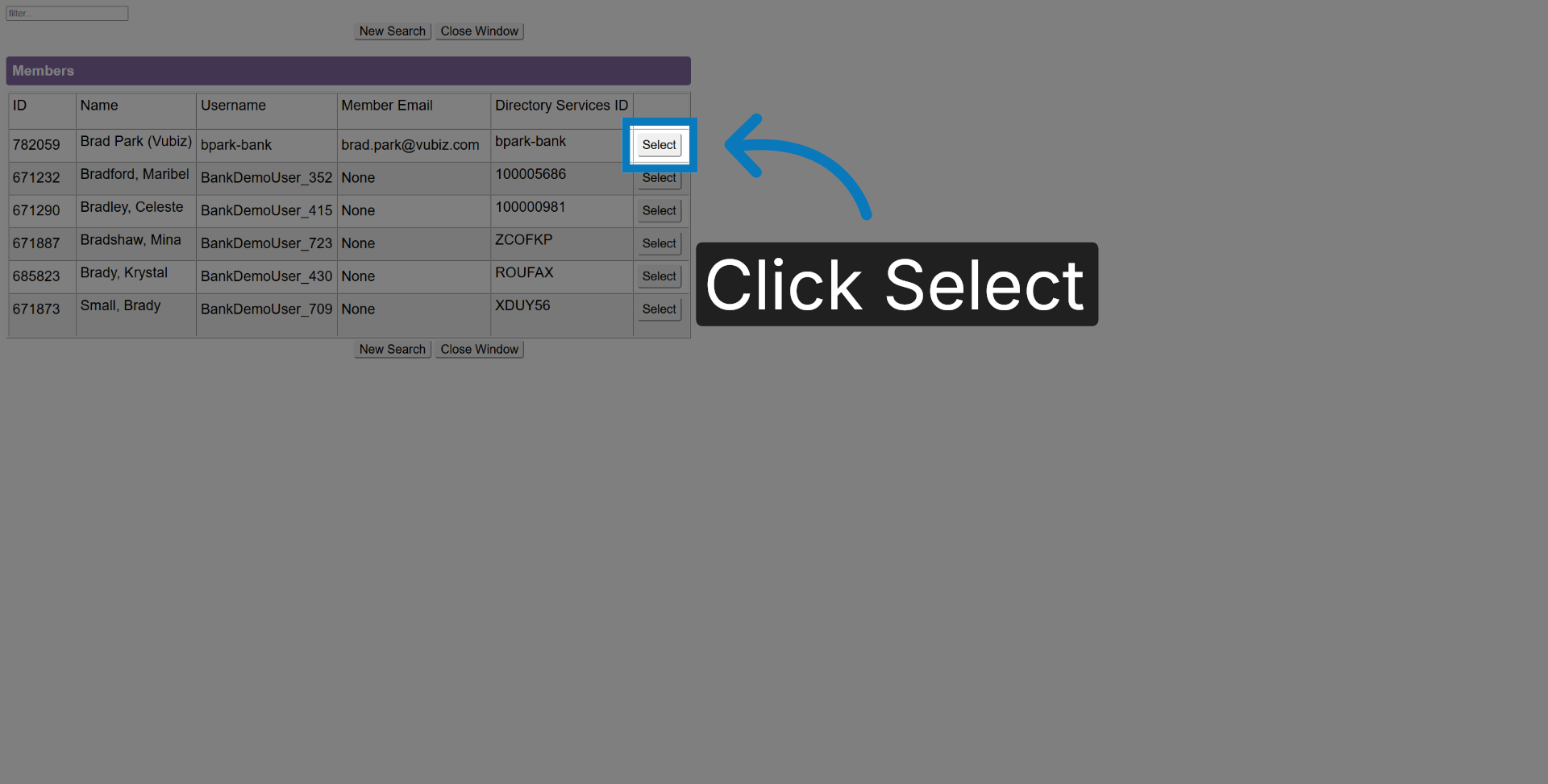
Locate the profile you wish to use and click Select.
9. Access Enrollment Section
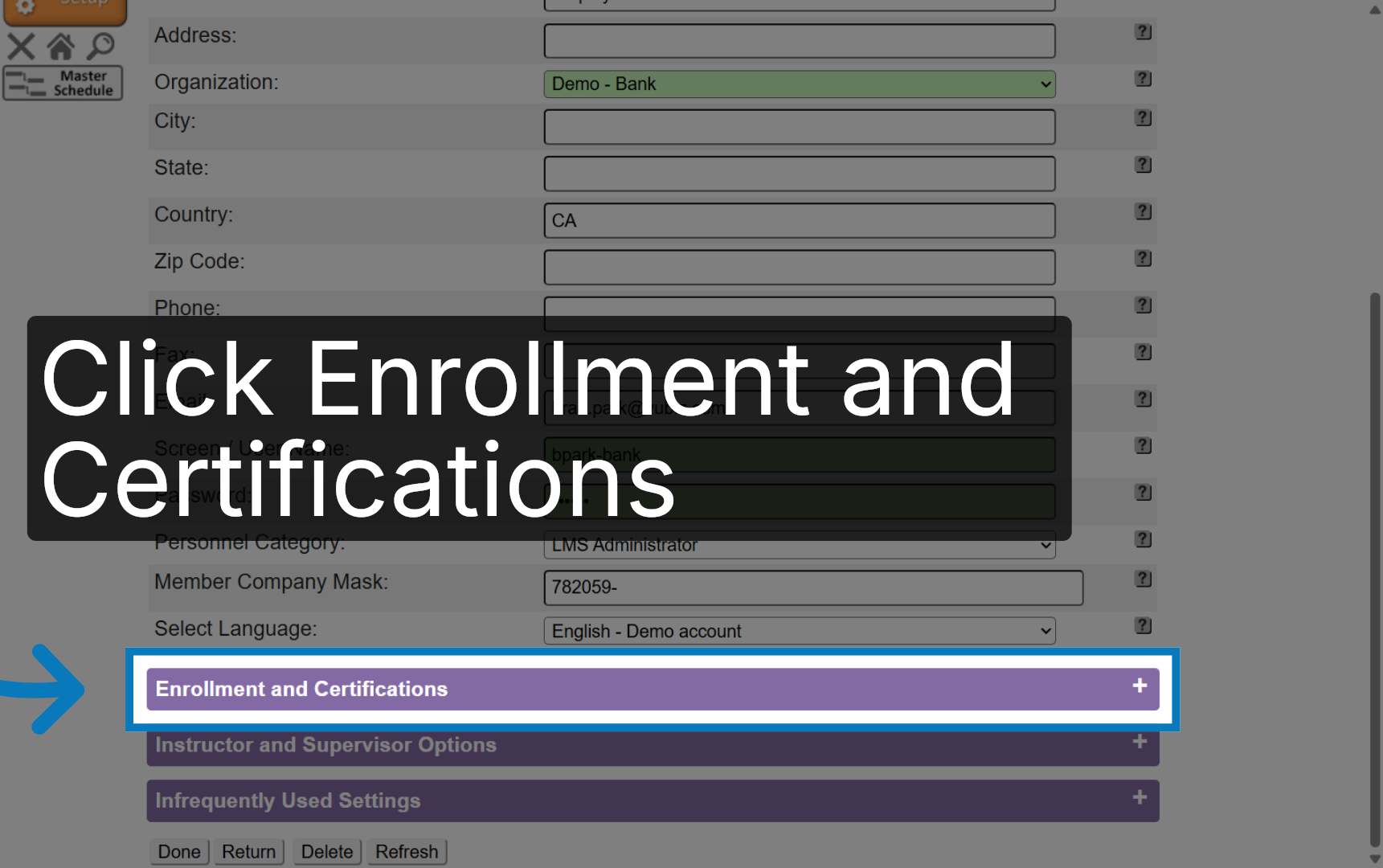
Once on the Profile page scroll down and Click Enrollment and Certifications.
10. Open Member Enrollment Review
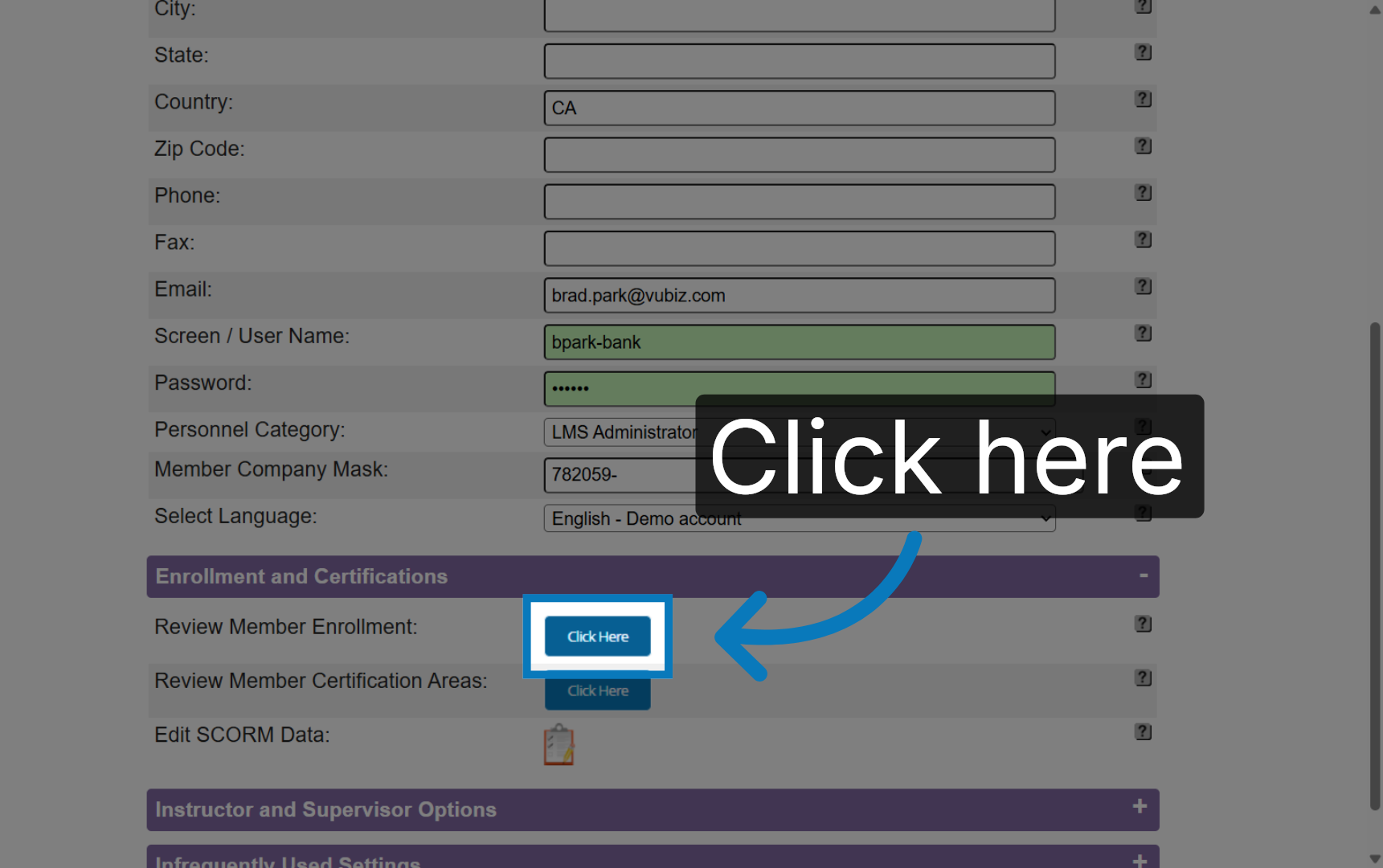
Click on Review Member Enrollment.
11. Add Another Enrollment
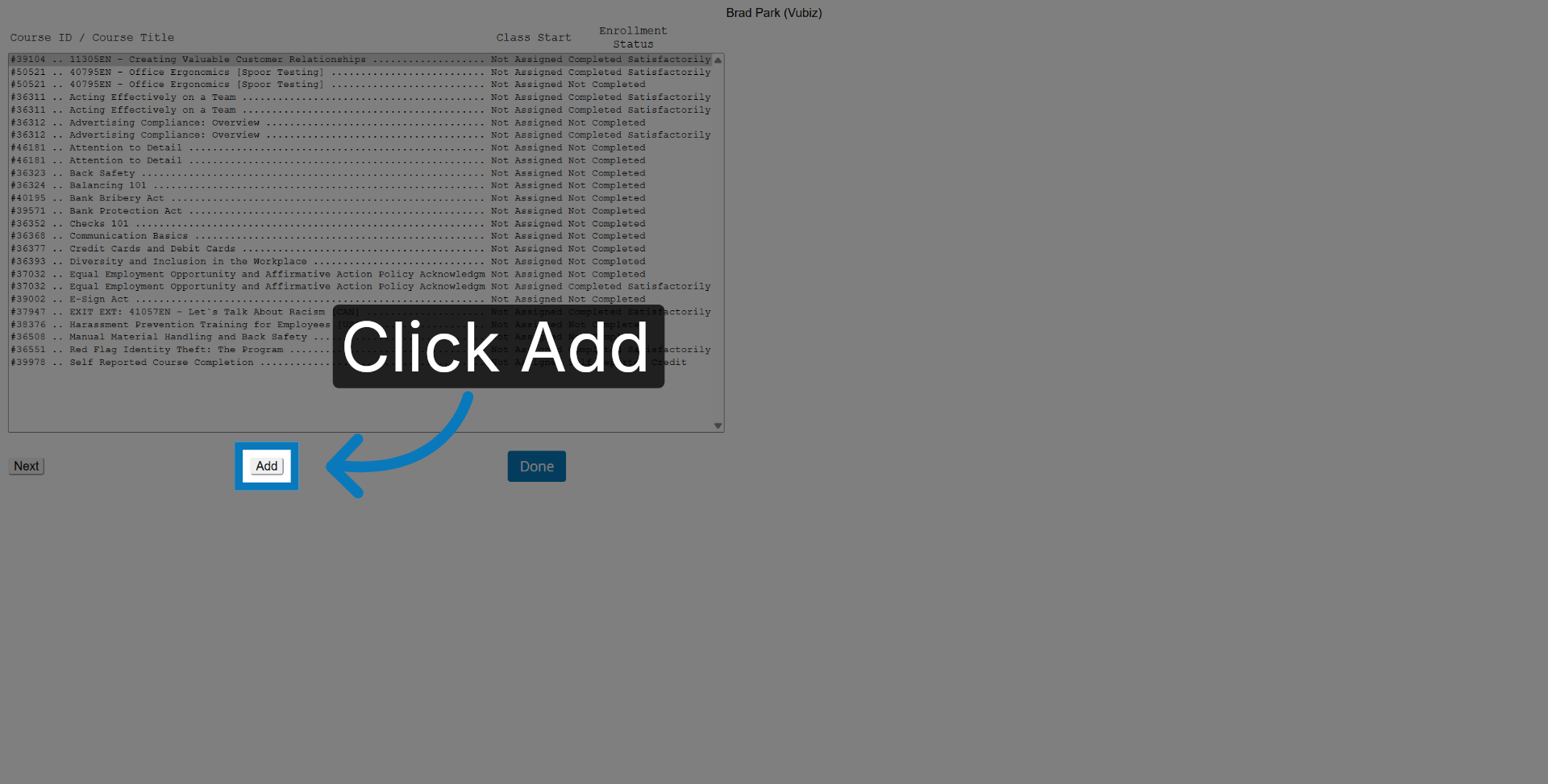
Click Add.
12. Select Additional Course
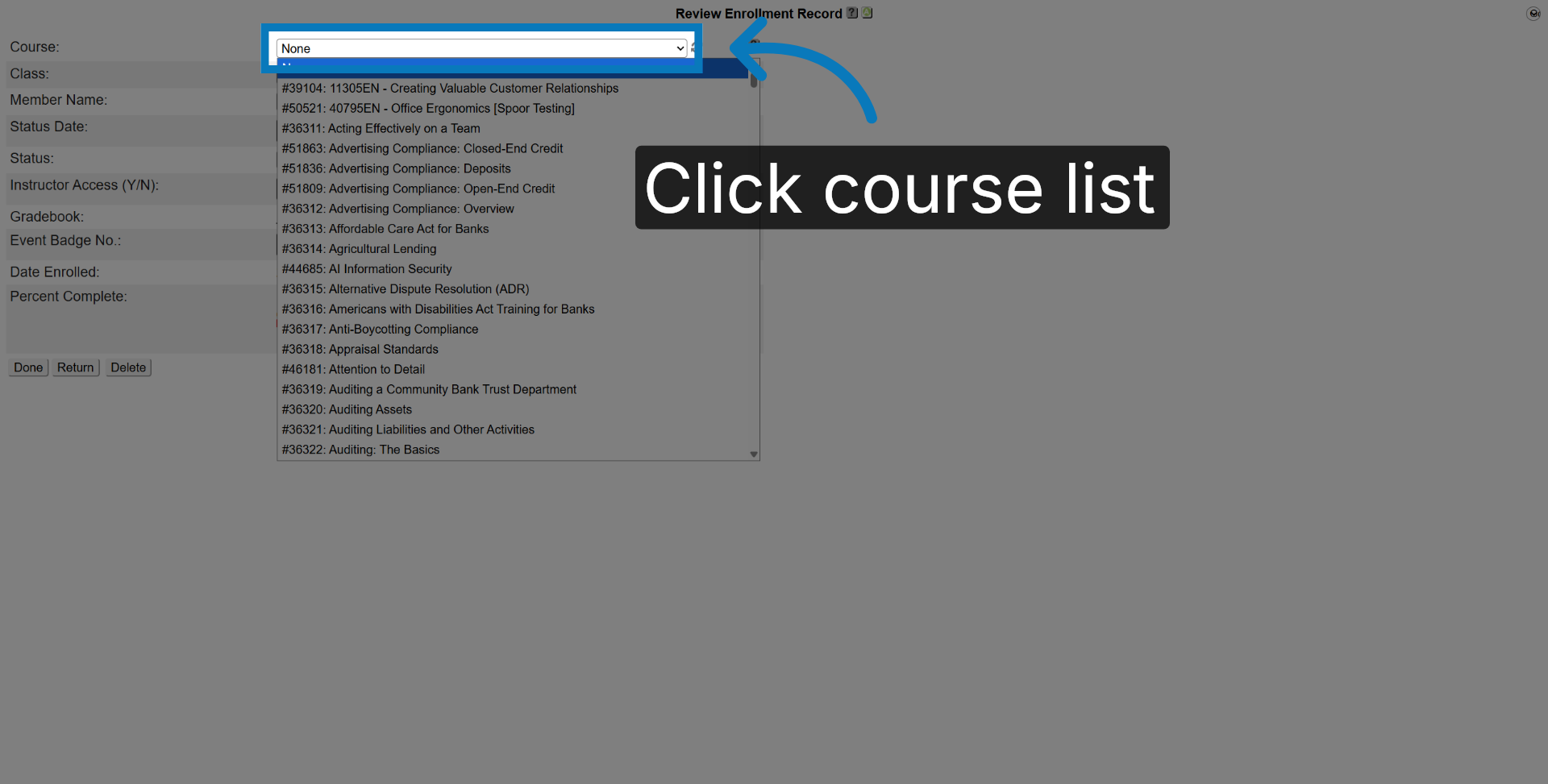
Select the course from a list.
13. Complete Enrollment Addition
Click Done.
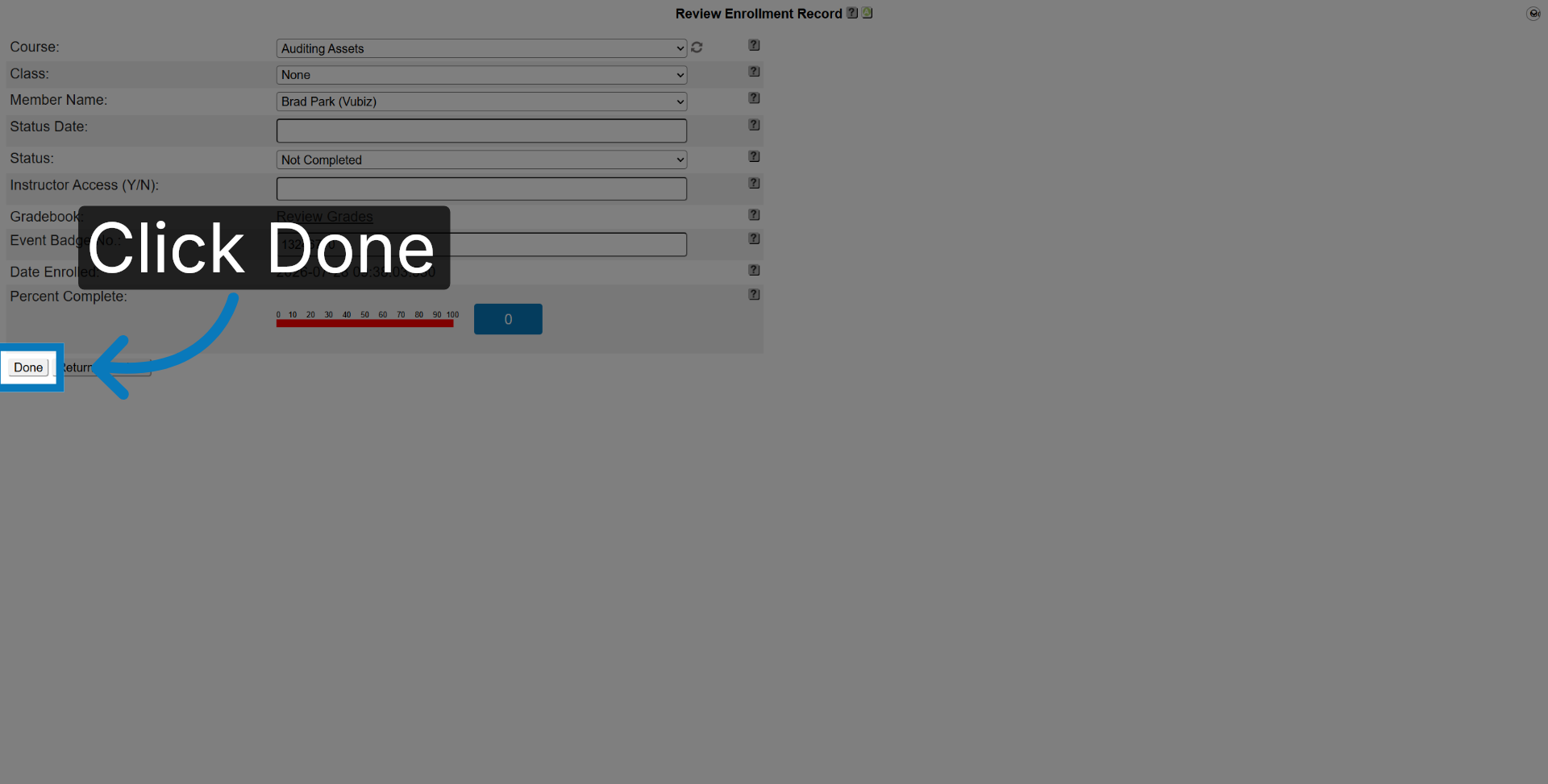
14. Confirm Operation Completion
Click Done.

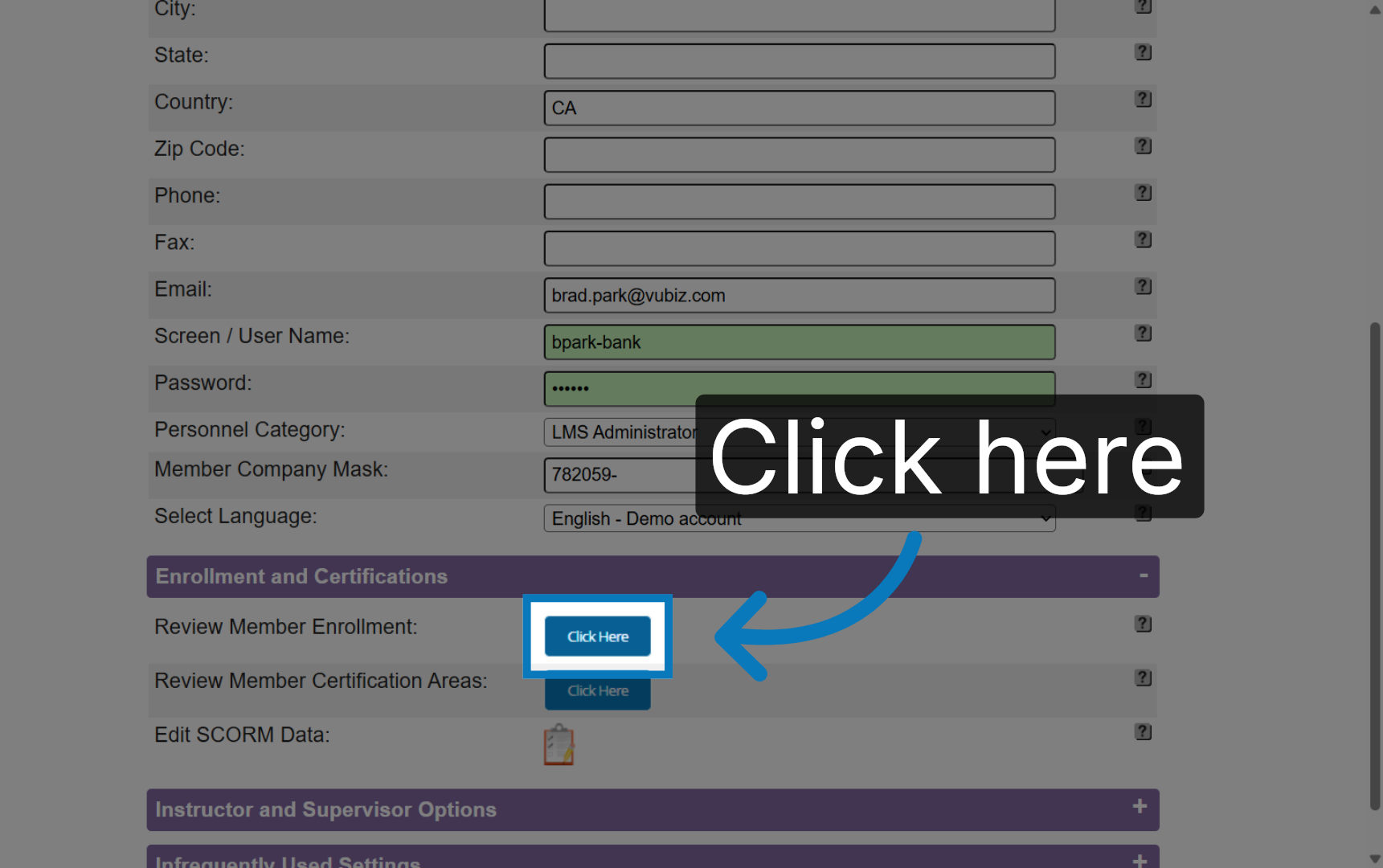
15. Access Enrollment Review
Click here.
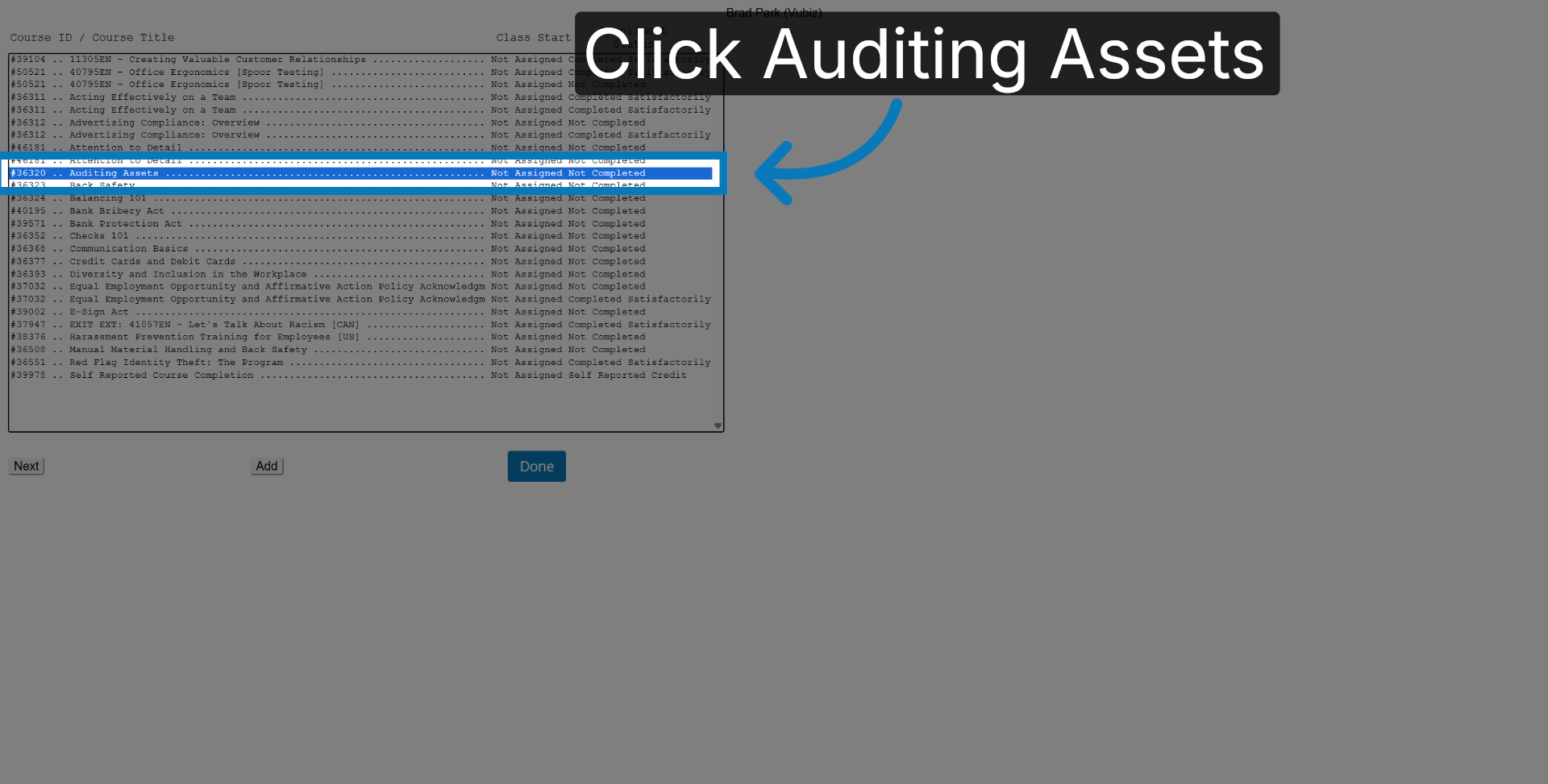
16. Select Auditing Assets Course
Select the course enrollment you just added
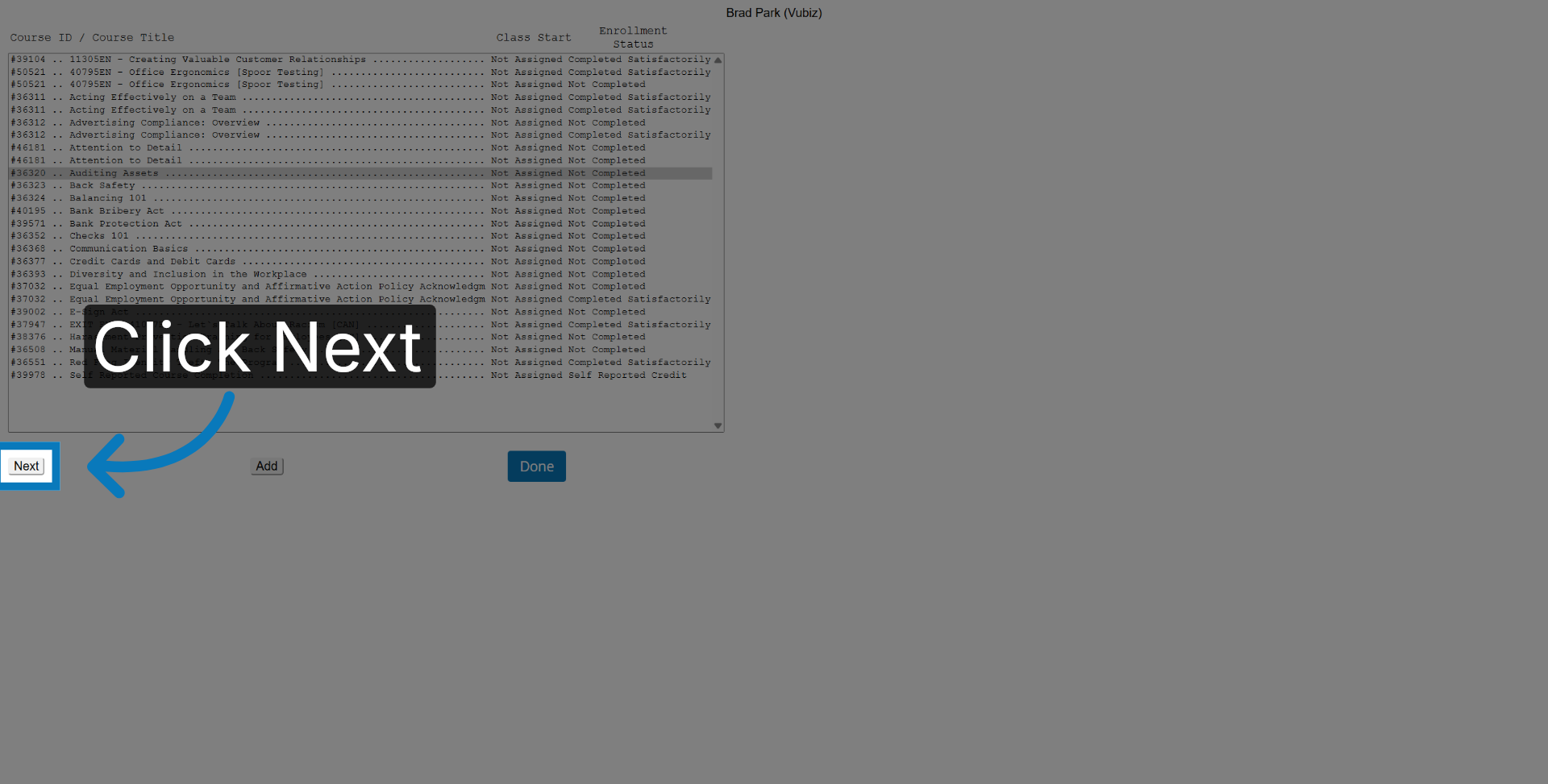
17. Proceed to Next Step
Click Next.
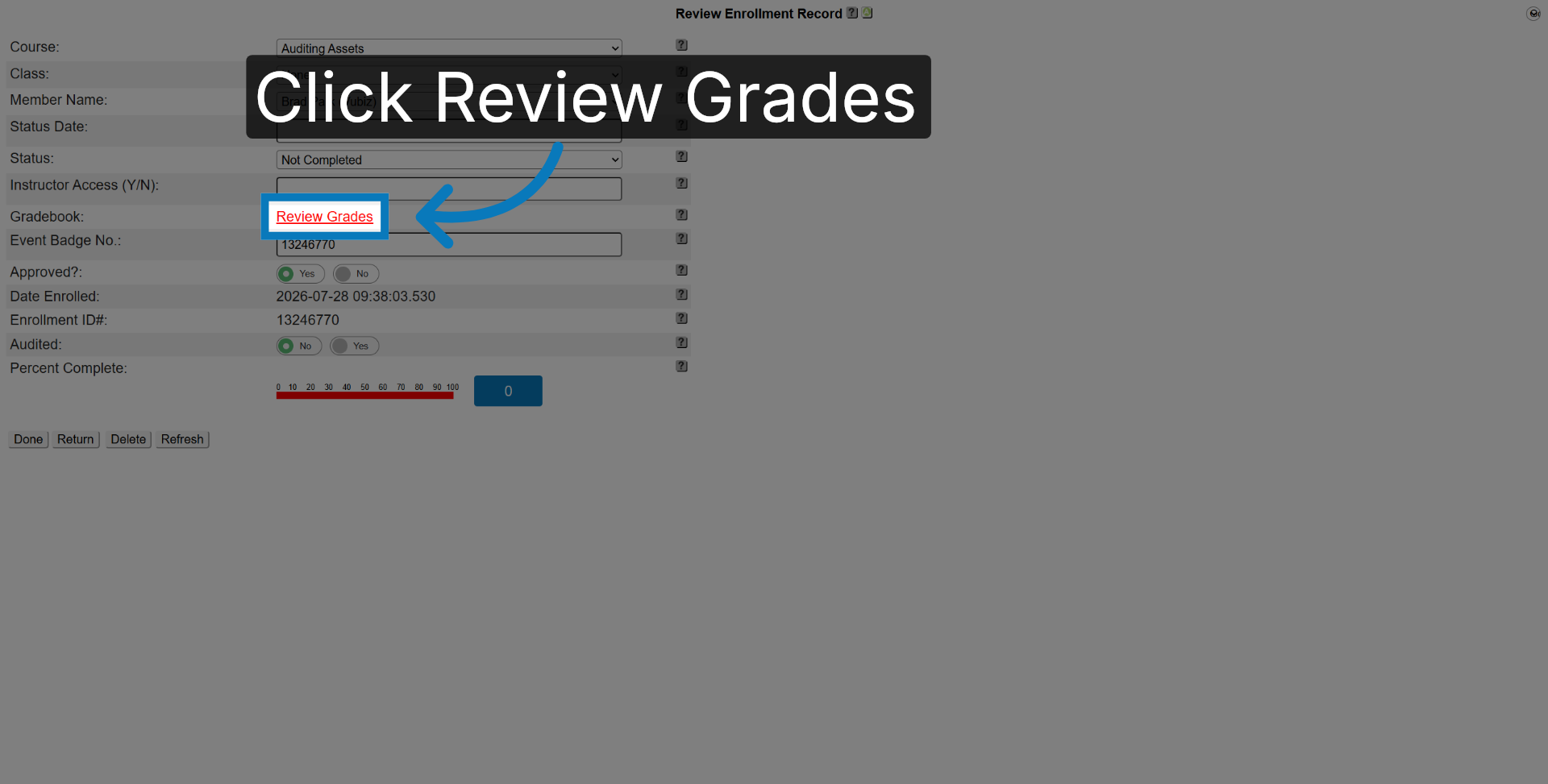
18. Review Grades Section
Click Review Grades.
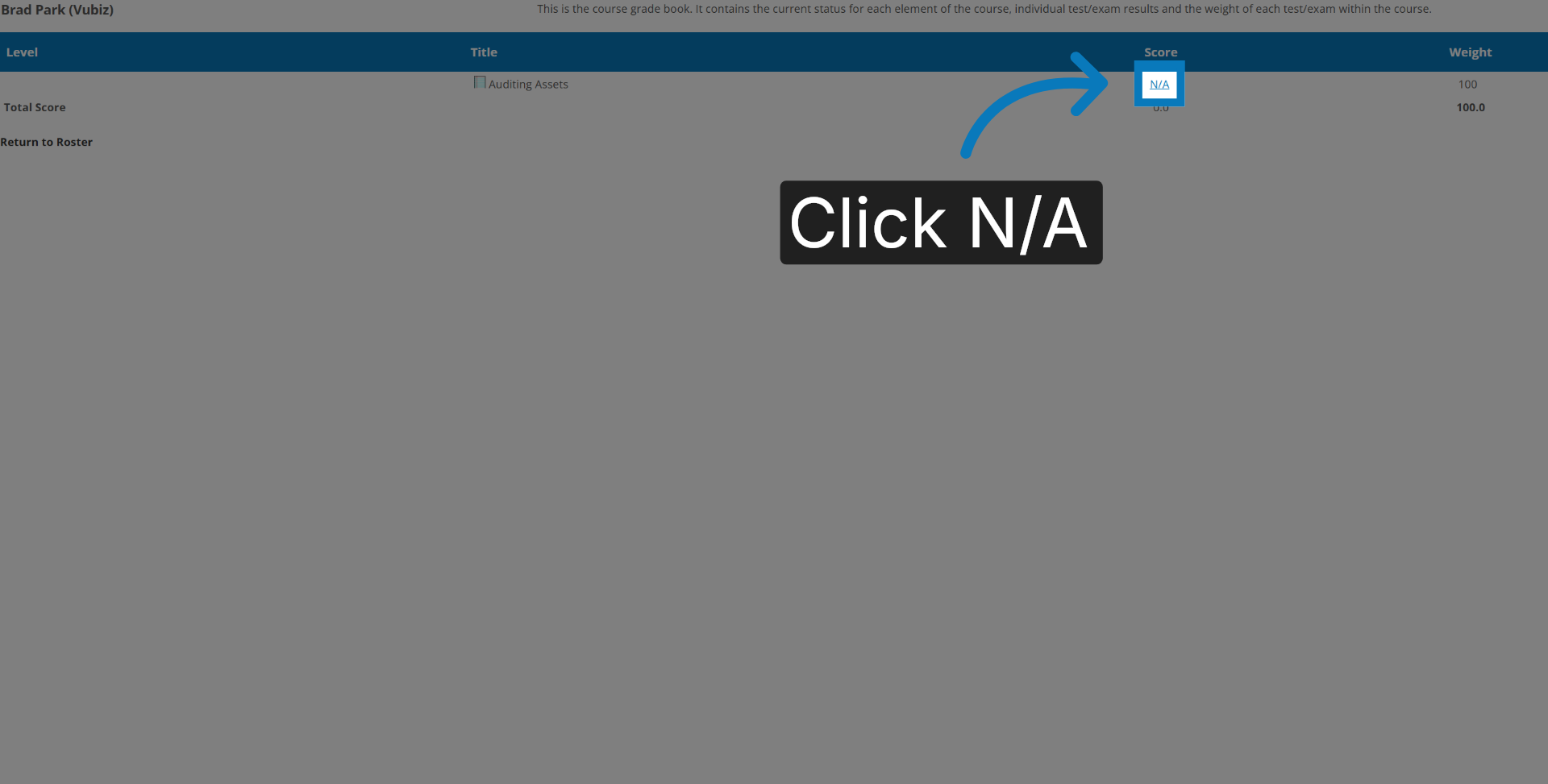
19. Select Not Applicable Score
Click N/A.
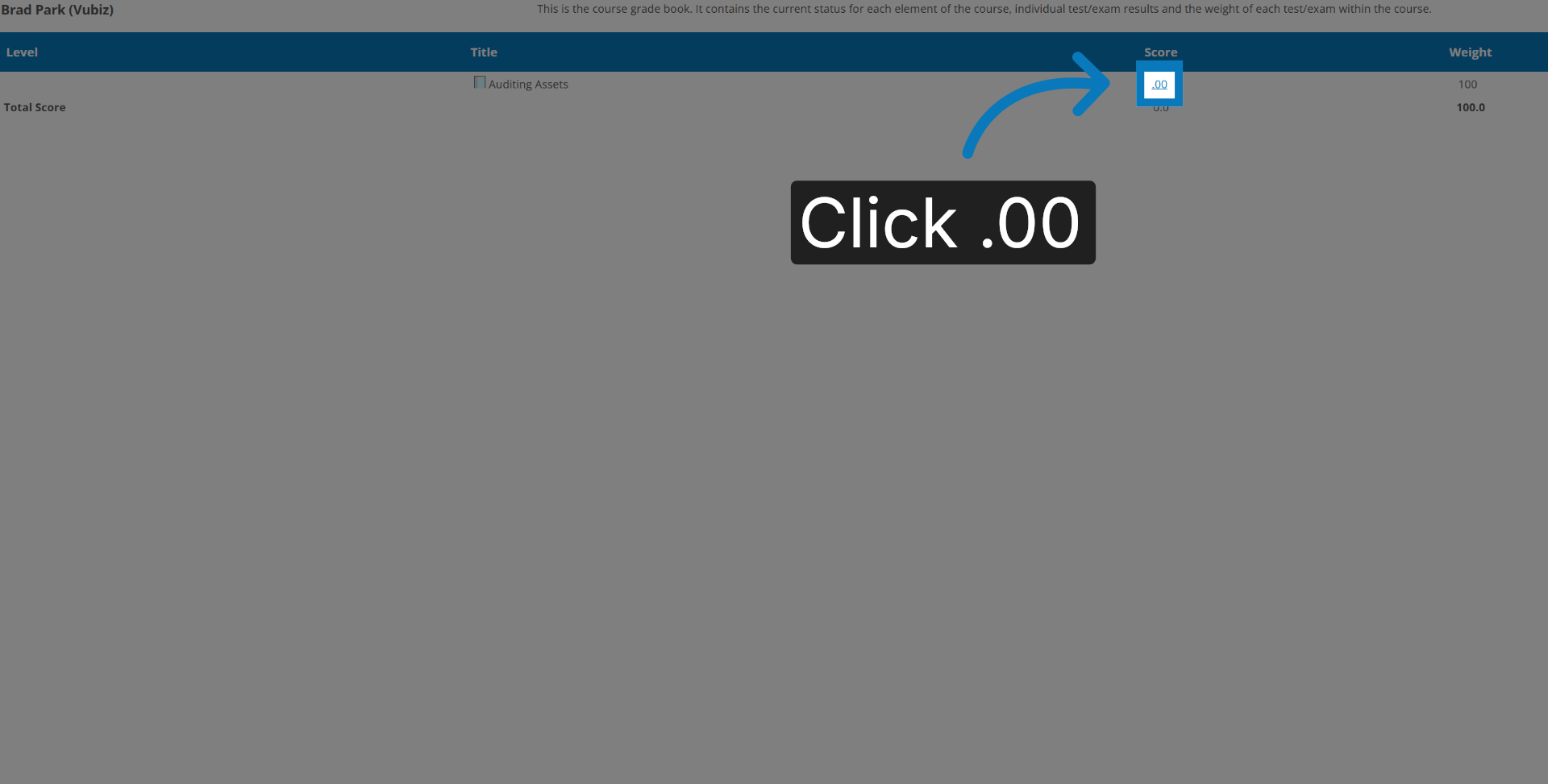
20. Select Zero Score
Click .00.
21. Select Zero Score
Click 0.0.
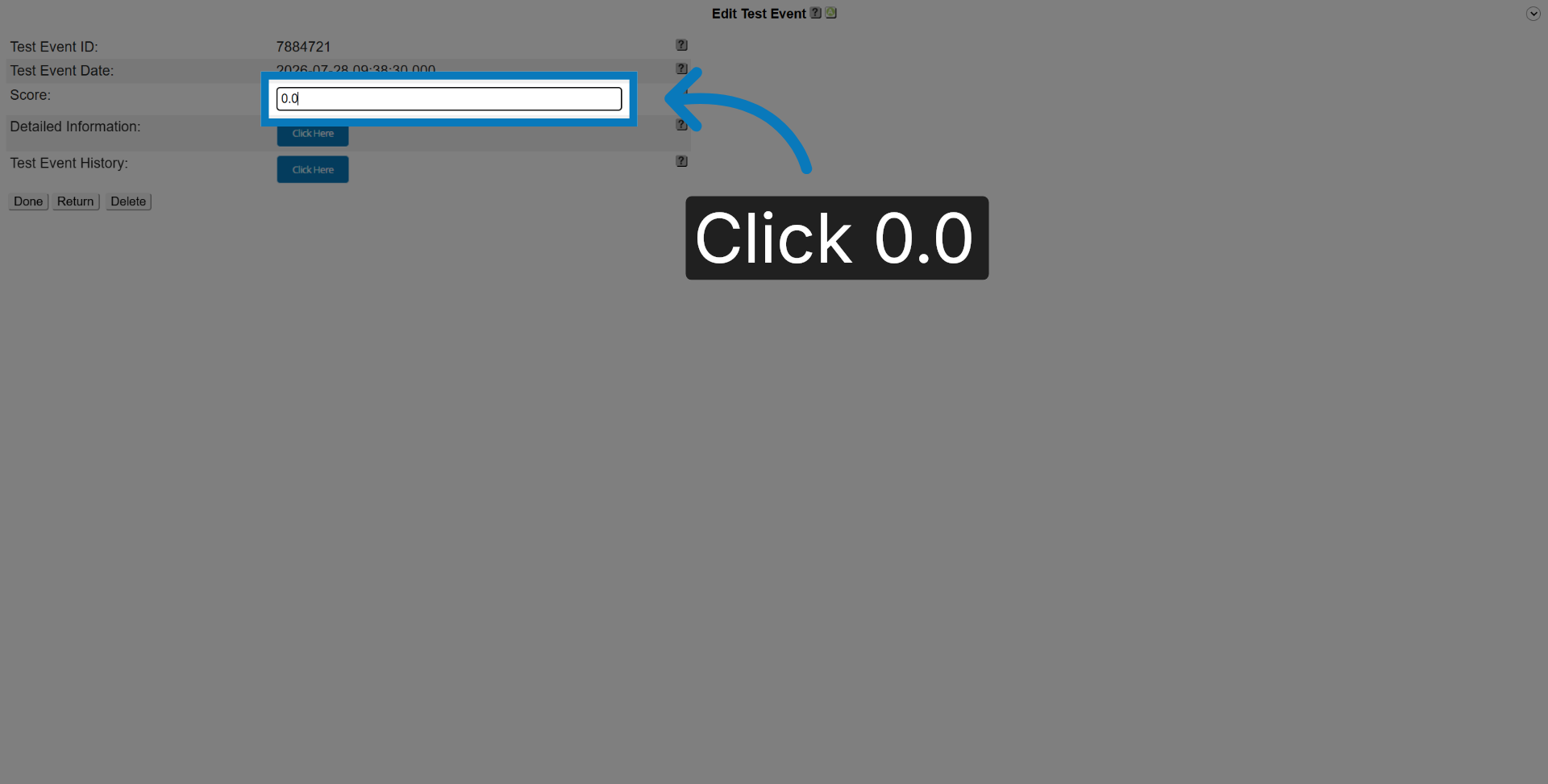
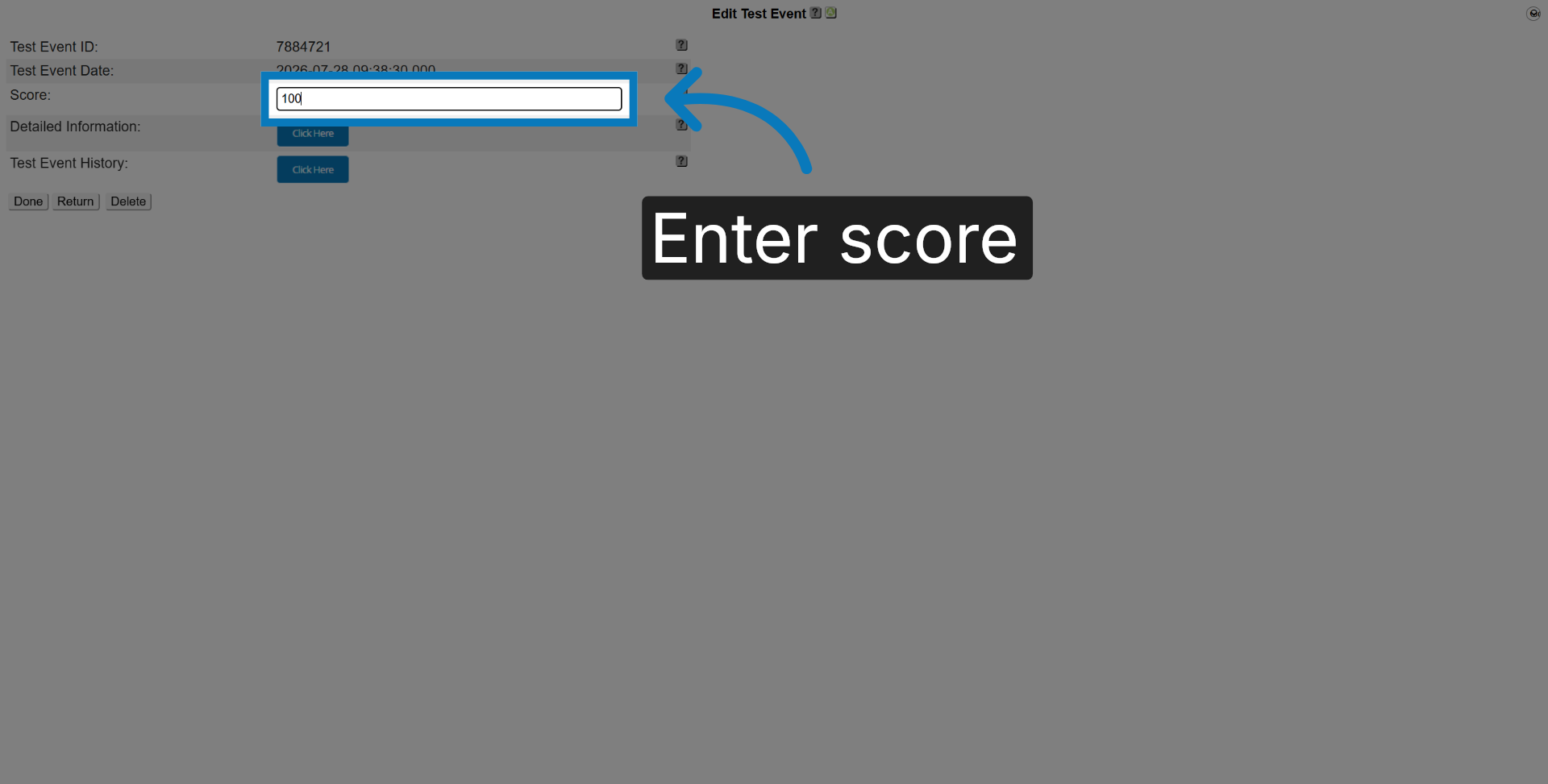
22. Enter Score Value
Enter the correct Grade
23. Finalize Grade Entry
Click Done.

24. Confirm Operation Completion
Click Done.

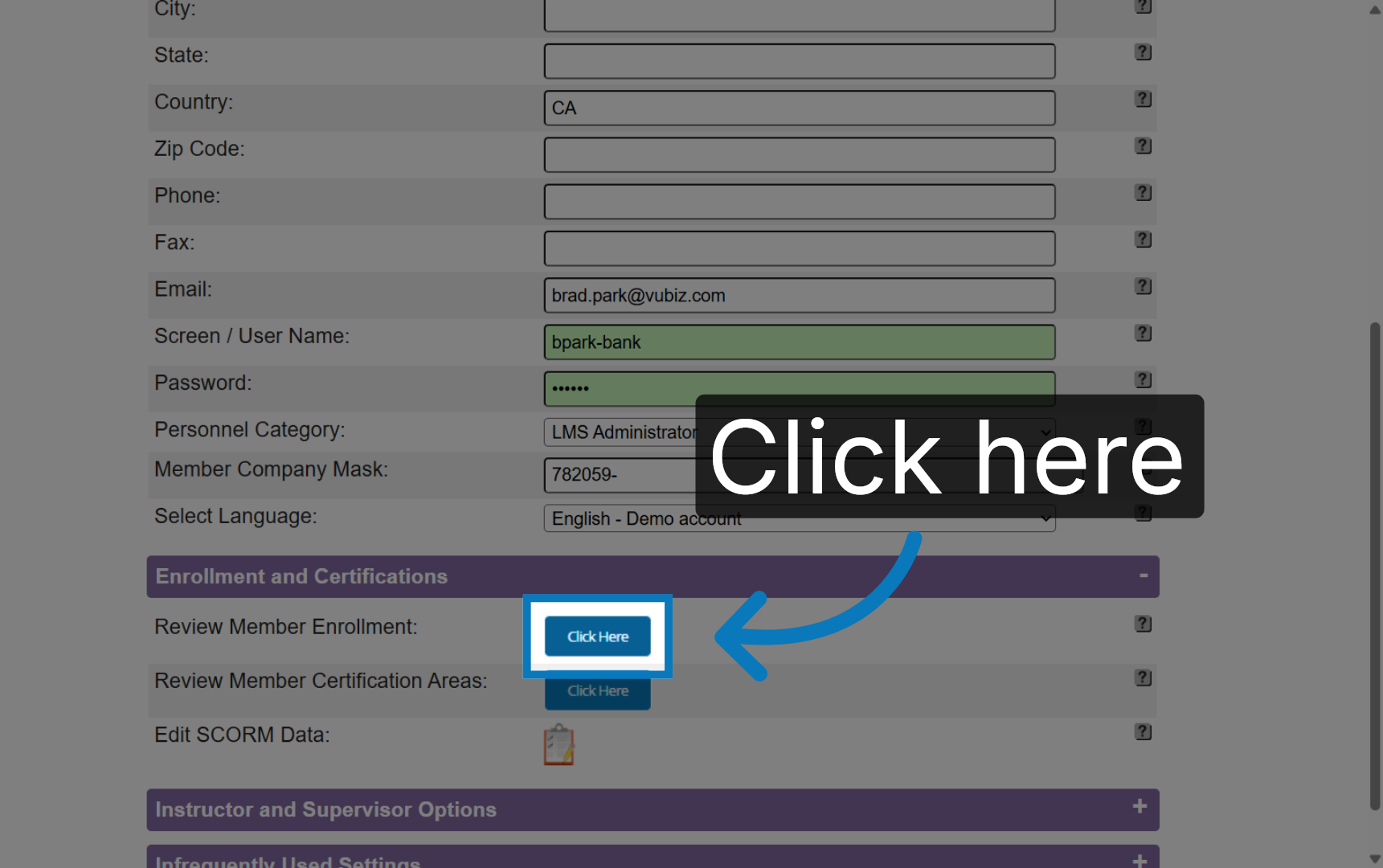
25. Review Member Enrollment
Click here.
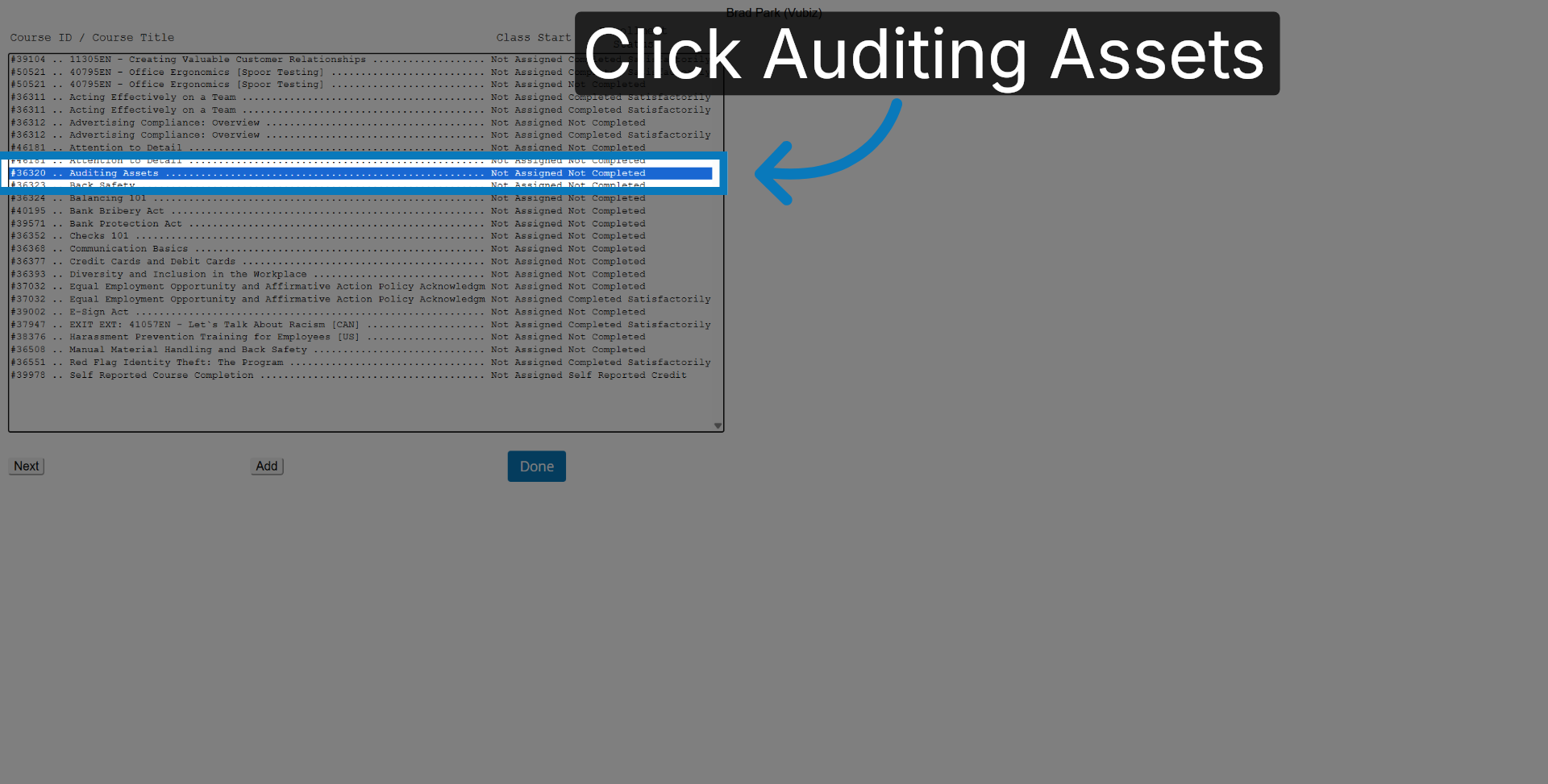
26. Select Auditing Assets Course
Select the course one more time.
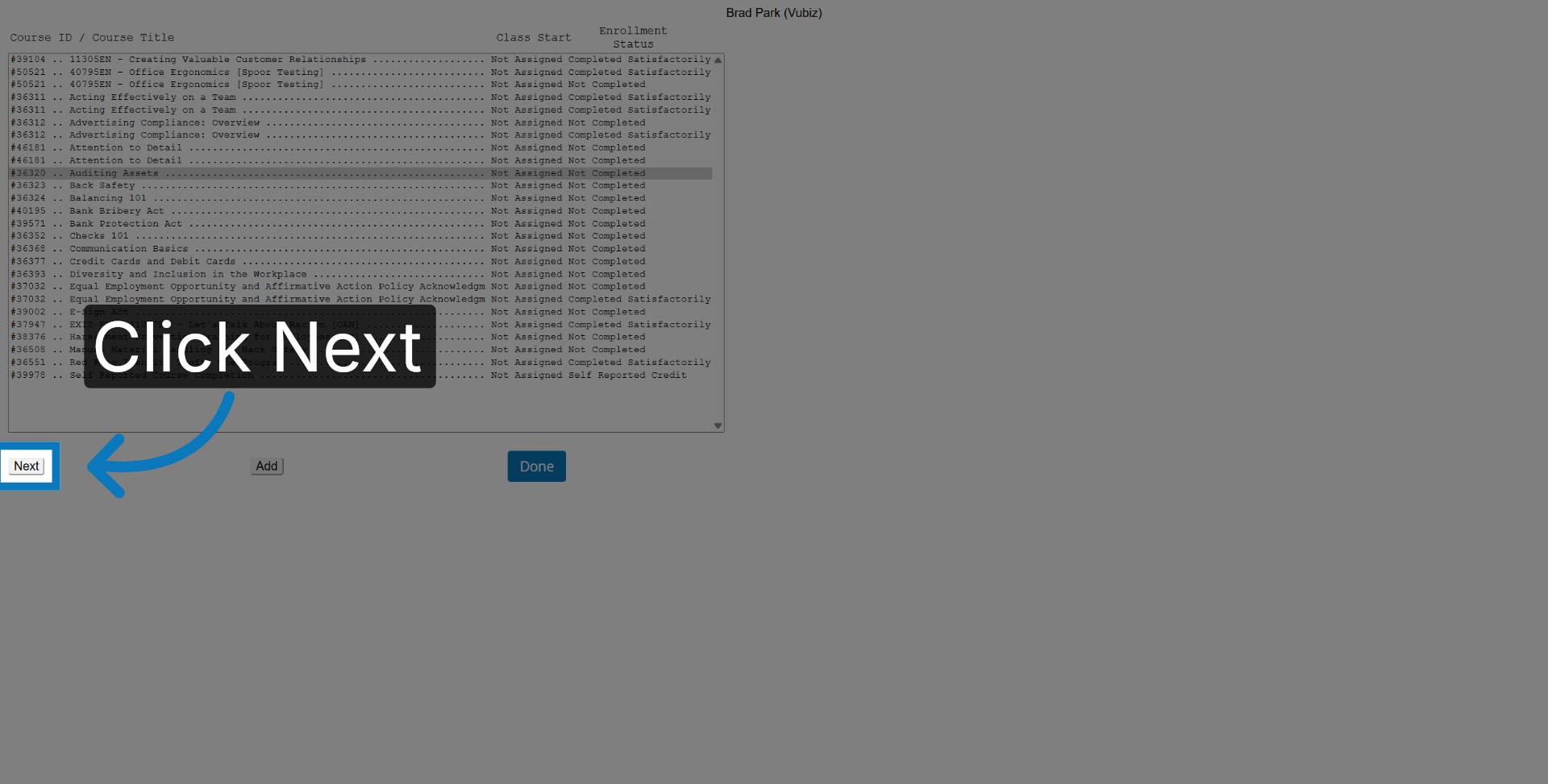
27. Proceed to Next Step
Click Next.
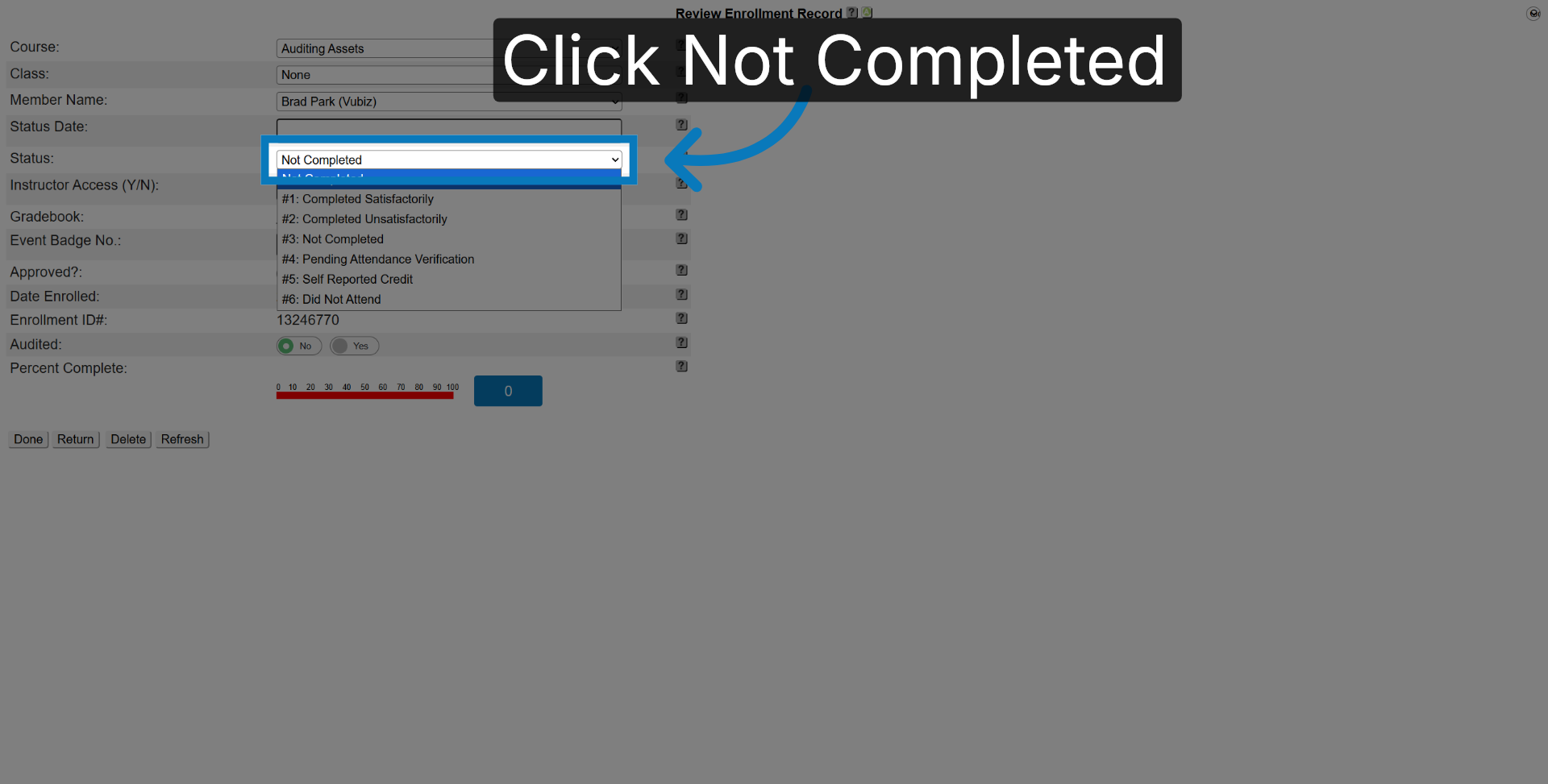
28. Select Completion Status
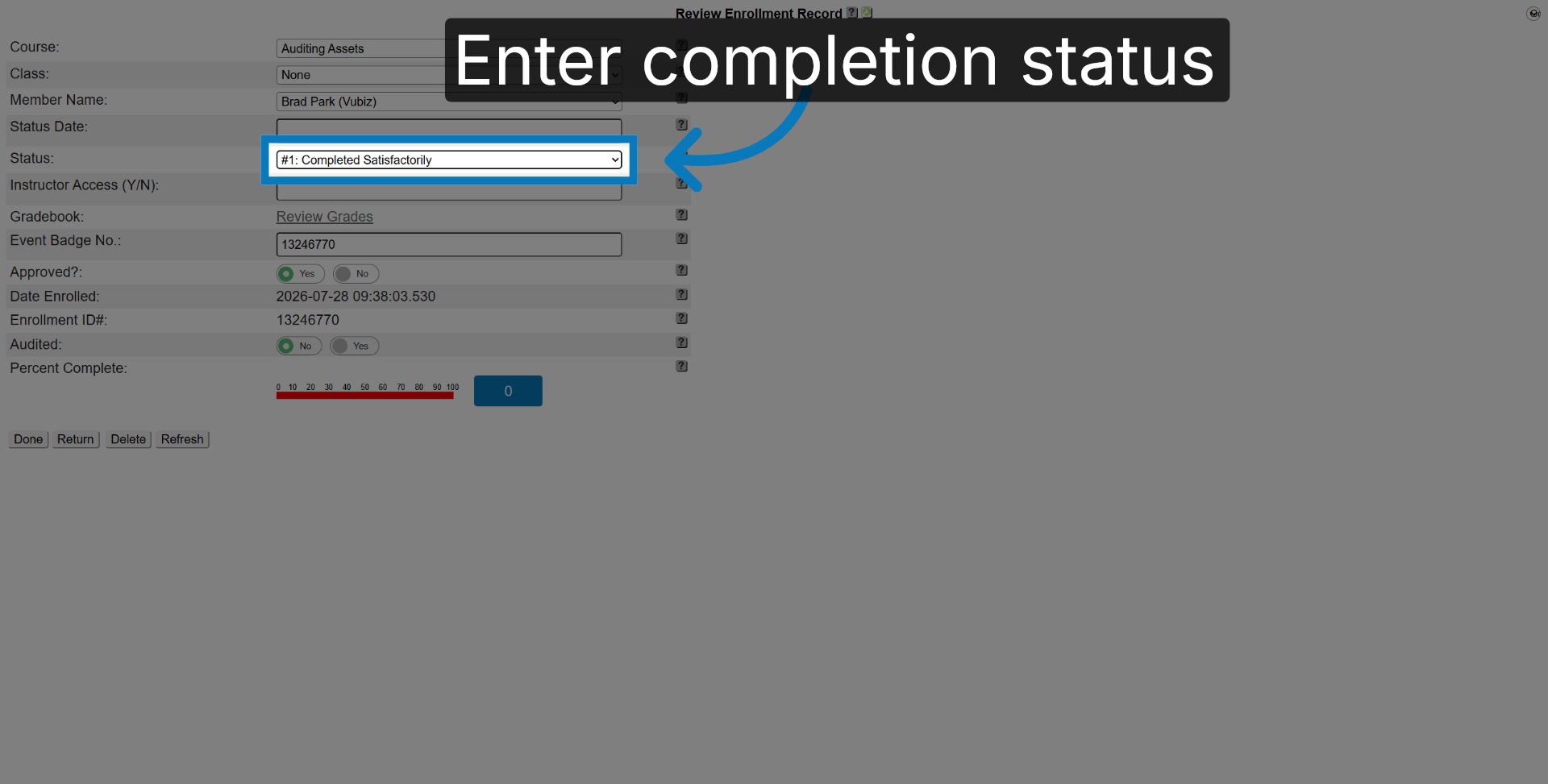
29. Enter Completion Status
Select Completed Satisfactorily
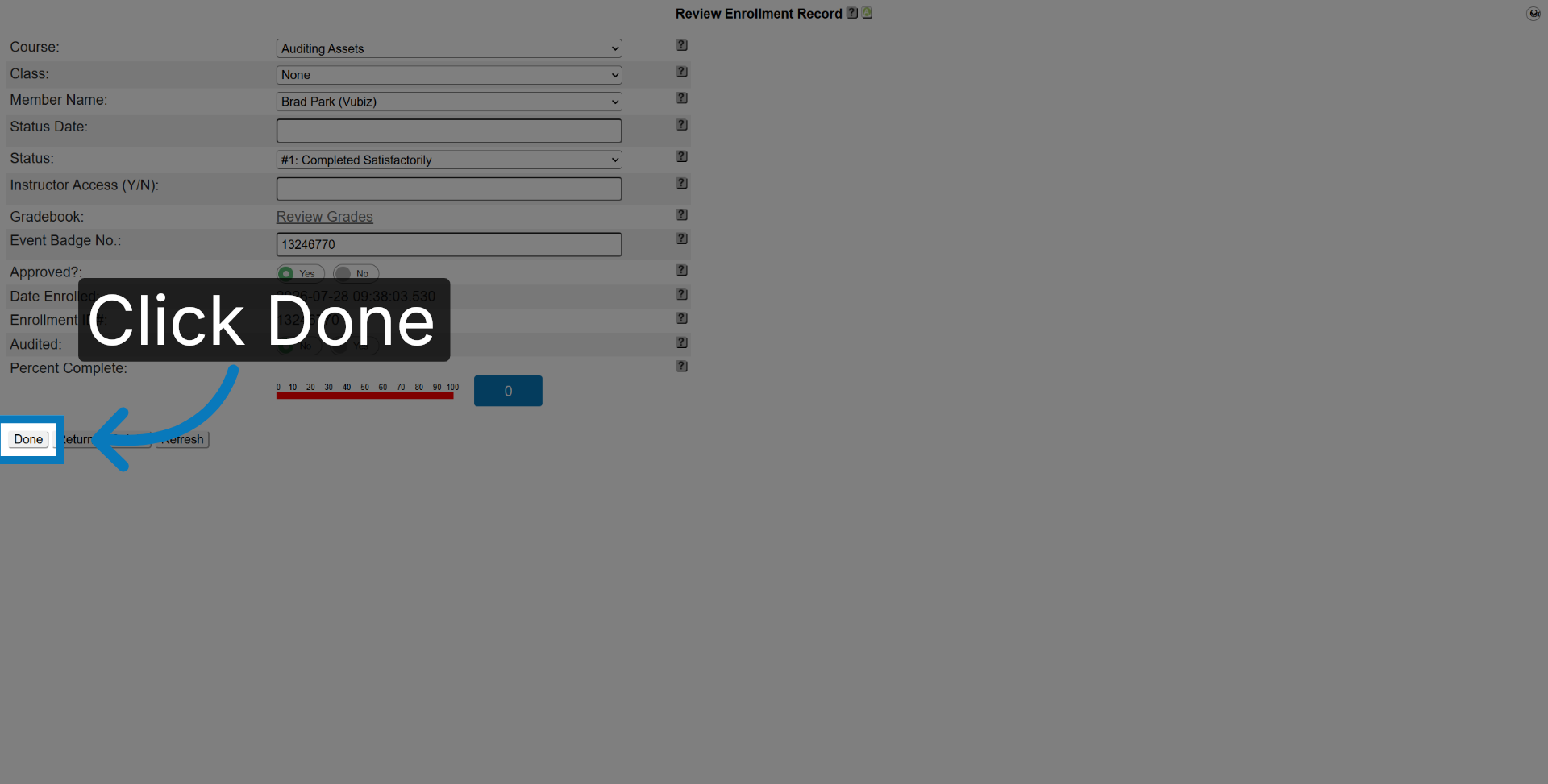
30. Finalize Status Update
Click Done.
31. Complete Enrollment Process
Click Done.

You have successfully added and updated course enrollments for a member profile in KMx. You can repeat these steps to manage additional courses and maintain accurate training records.